Team Page
1. Team Members view
Section titled “1. Team Members view”When you click Team in the main navigation of Approve Owl, you’re taken to a screen that lists out all of your team members in the platform.
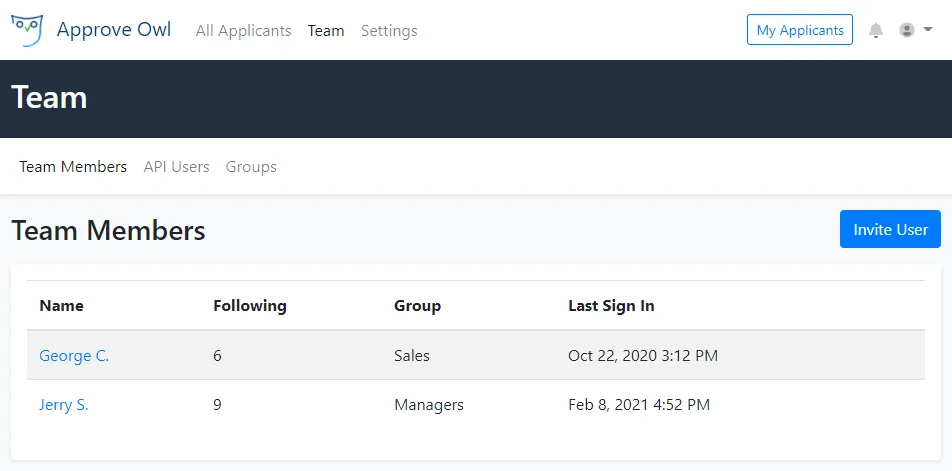
On the Team Members view, each user is listed along with the number of applicants they’re following, which Approve Owl user group they’re assigned to and when they last signed in to Approve Owl.
To add a user to your Approve Owl team, click the Invite User blue button to the top right. You’ll enter their name, company email and which Approve Owl user group you’d like to assign them to. Click Create User button to complete the user addition.
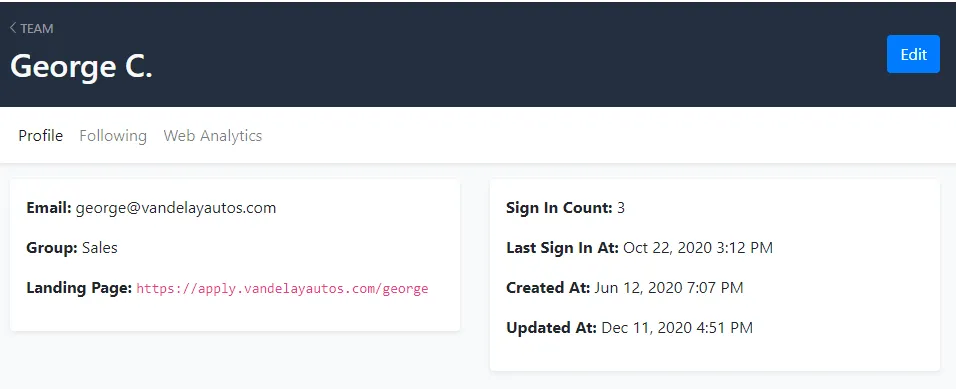
If you click on a user’s name, you can view details about their user profile. To edit any of the user’s information, click the blue Edit button to the top right. To return to the complete user’s list, click <TEAM at the top left above the user’s name.
2. API Users view
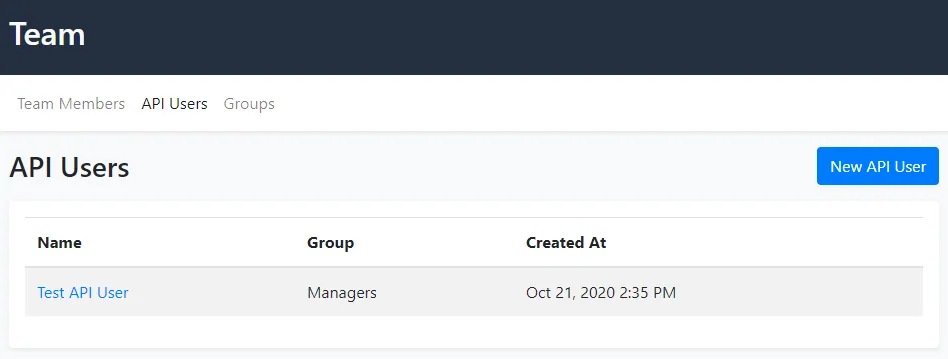
Section titled “2. API Users view”From this view, you can create a user that can access the Approve Owl API, but not the UI / applicant platform.
3. Groups view
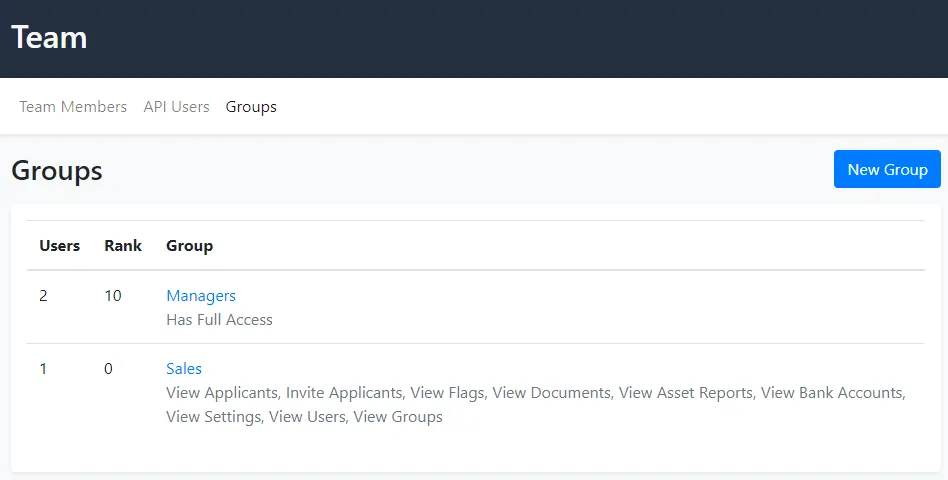
Section titled “3. Groups view”Provides an overview of the Approve Owl user groups including how many of your users are in each group and access details.
To add a new user group, click the New Group blue button to the top right. We recommend you contact your Approve Owl account manager for assistance with adding a new group if needed.
An overview of the Groups are as follows:
- Owner is an admin that has the ability to close the account.
- The admin role can do everything. An admin is required to make any Organization-wide changes. This includes settings, imports, and users.
- The manager role is required for bulk reporting features such as web analytics and destructive tasks like resetting banking details or deleting an applicant.
- Managers are also allowed to do tasks that would have a large impact on the billing cycle such pulling assets (unless an admin has turned on automatic asset pulling organization-wide).
- Associate is the default role. Besides destructive actions like deleting, an associate can view and do anything regarding an applicant or applicant related entities like bank accounts and documents.
- Associates can also view most organization and user pages, but can only edit their own profile.