Messages How-to
The Approve Owl Messages is a live messaging system that opens in a new browser tab for your followed applicants. To open Messages, click on “Messages” button in the top navigation, 3rd menu item to the right.

Once in the Messages view, the UX is similar to how text messaging is structured for iOS devices, with all communication threads listed to the left, most recent interactions at the top. If you click on an applicant’s name in the left list, the conversation thread for that applicant will appear to the right.
You can return to the Approve Owl dashboard via the button at the top right of the Messages window.
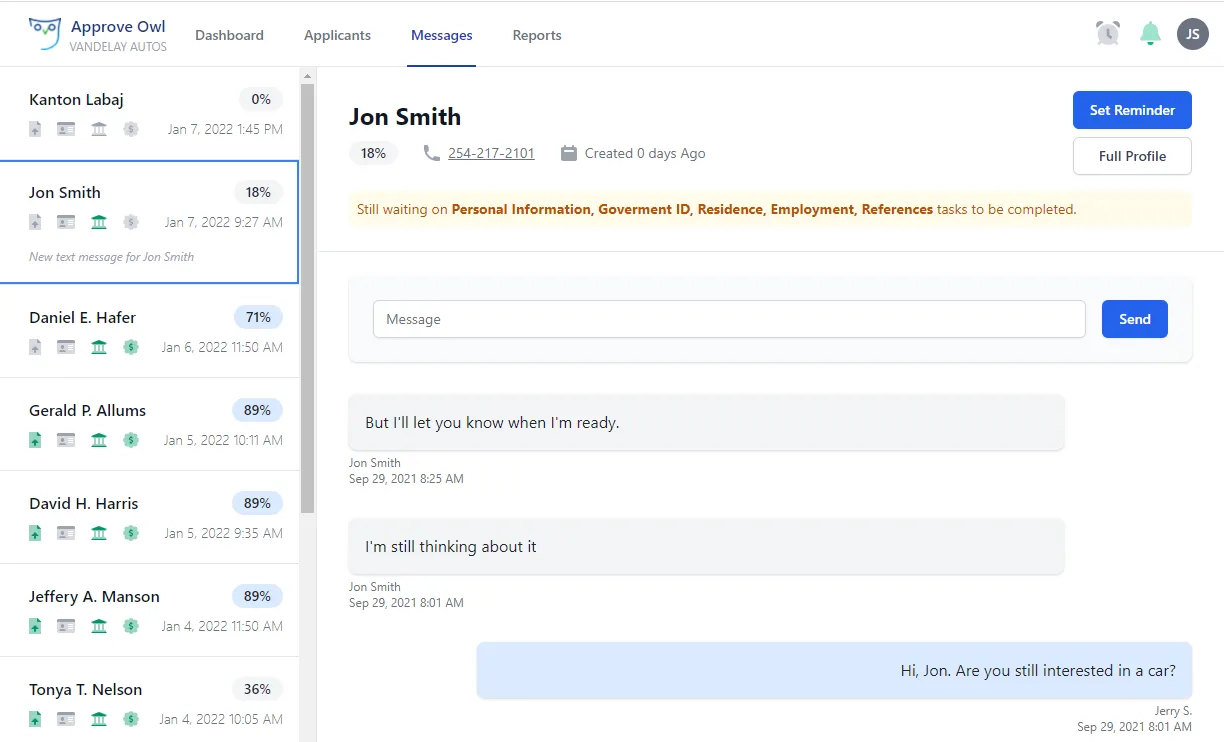
For each applicant’s Messages thread in the left hand listing of your communication threads, there are a few quick status items provided, top to bottom, left to right.
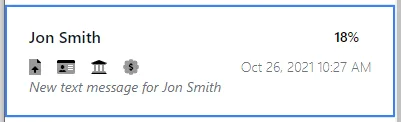 1. Applicant name
2. Task icons: Icons shown correspond to the icons in the left navigation of the applicant’s profile. Each icon will be green once the applicable tasks have been completed by the applicant. Left to right, the icons correspond to profile tasks for Documents, Identity, bank linked, and assets pulled (if you’ve chosen to pull in the financial data from the bank(s) linked by the applicant).
3. New message alert copy
4. Applicant profile percent complete
5. Date/time of last message send/receipt
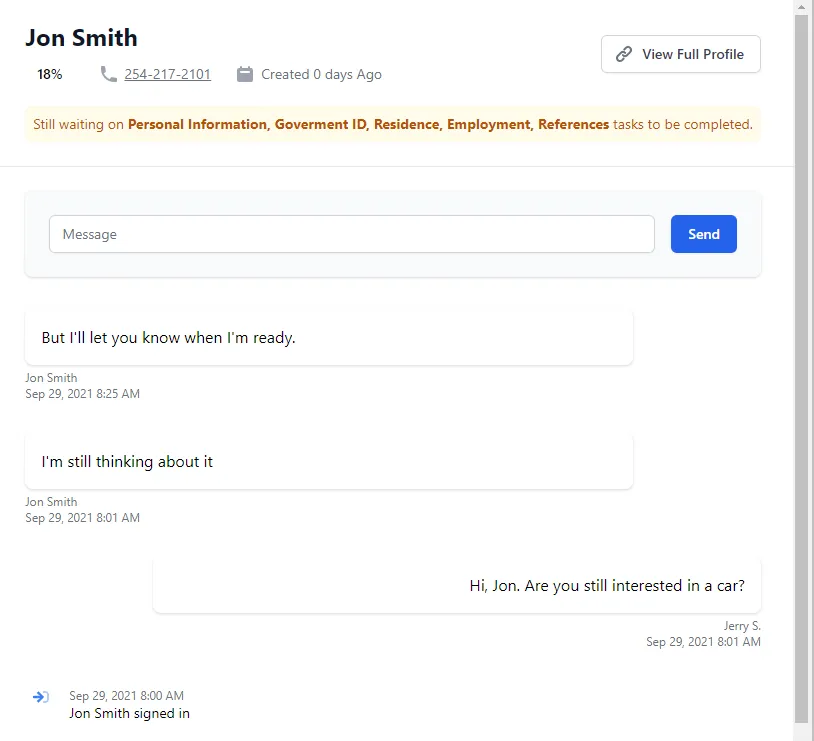
In the right view pane of Messages, you can see an expanded view of the Messages thread for the selected applicant. To the top right of the Messages window, you can click to “View Full Profile” of the applicant displayed. In case the applicant needs to be contacted directly, their provided phone number is listed at the top of their communication thread view.
To send a new text message to the applicant, simply type your message in the “Message” input box and click the “Send” button. The communication thread is updated real time. The applicant’s Messages thread will also note any actions/updates for the applicant, such as if they complete a task.