Financial Details
From an applicant’s profile, in the Financial tab, you can click on one of the linked bank accounts listed to view more detail.
1. Account detail view menu
Section titled “1. Account detail view menu”When you click in to a specific bank account, you are given a new sub-menu in the applicant profile.
 By clicking on the applicant’s name at the top left of the page at any time, you will be taken back to the main profile view for that applicant (outside of the finance details view that you’re currently in).
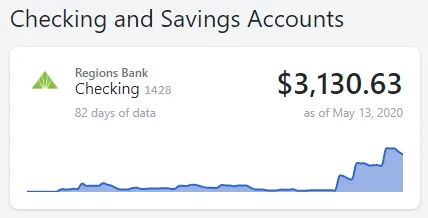
The menu bar lists out the account type, current account balance, available account balance, and the date range of data that is included in the detailed view below.
To the top right of the view, you can click the Statement button to download an account statement for the account you’re viewing detail on.
2. Summary view
Section titled “2. Summary view”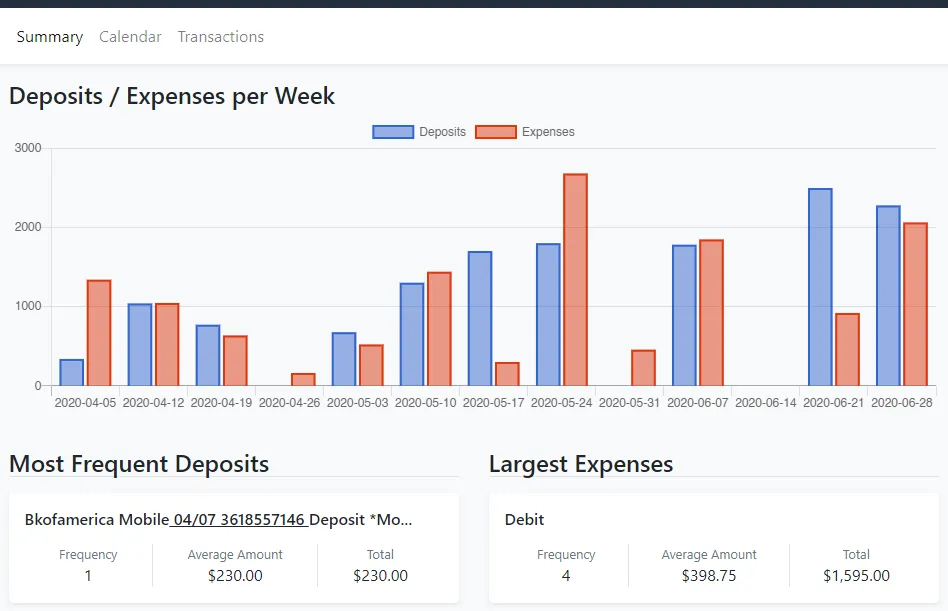
Provides an overview of deposit and expense activity week over week for the timeframe noted at the top of the page. The top of the view provides a chart to help see any trends in deposits and expenses.
The information below the chart highlights the most frequent deposits and largest expenses during the timeframe. Each highlighted deposit/expense notes the frequency that the item has occurred, average amount of the event and the total amount attributed to that most frequent deposit/expense.
3. Calendar view
Section titled “3. Calendar view”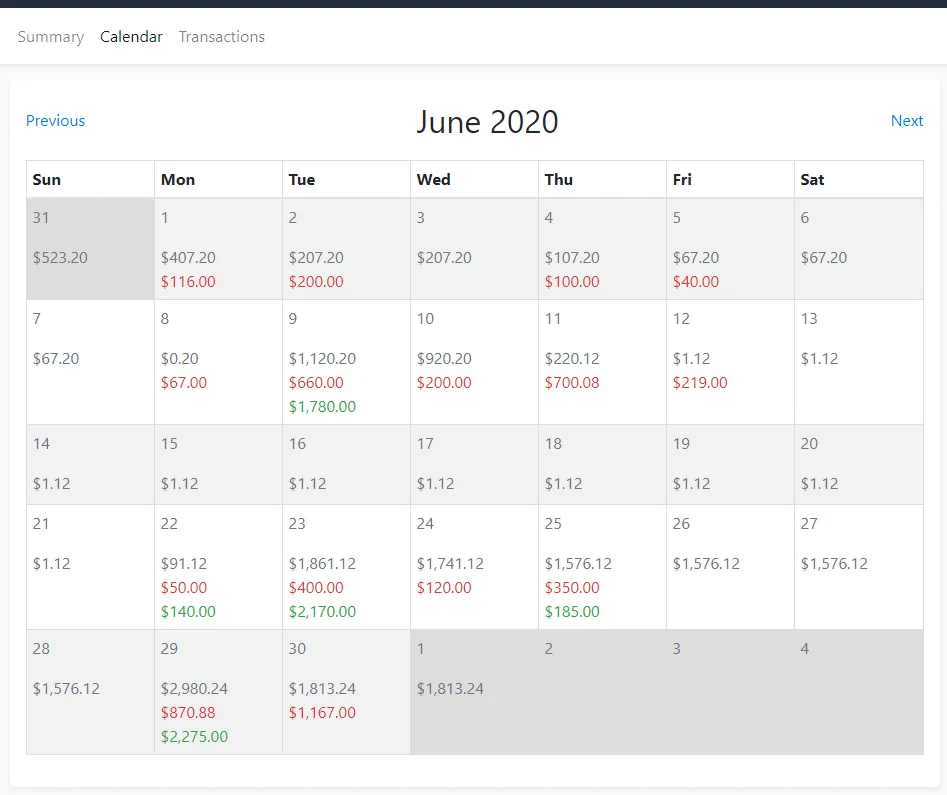 For the given time frame of financial data, each day lists the account balance in grey, deposits in green, and expenses/withdrawals in red. This view makes it easier to quick read if the applicant has regularly recurring direct deposit payments in each month.
You can navigate to earlier or later month calendar views by clicking on Previous on the top left of the calendar or Next to the top right of the calendar.
4. Transactions view
Section titled “4. Transactions view”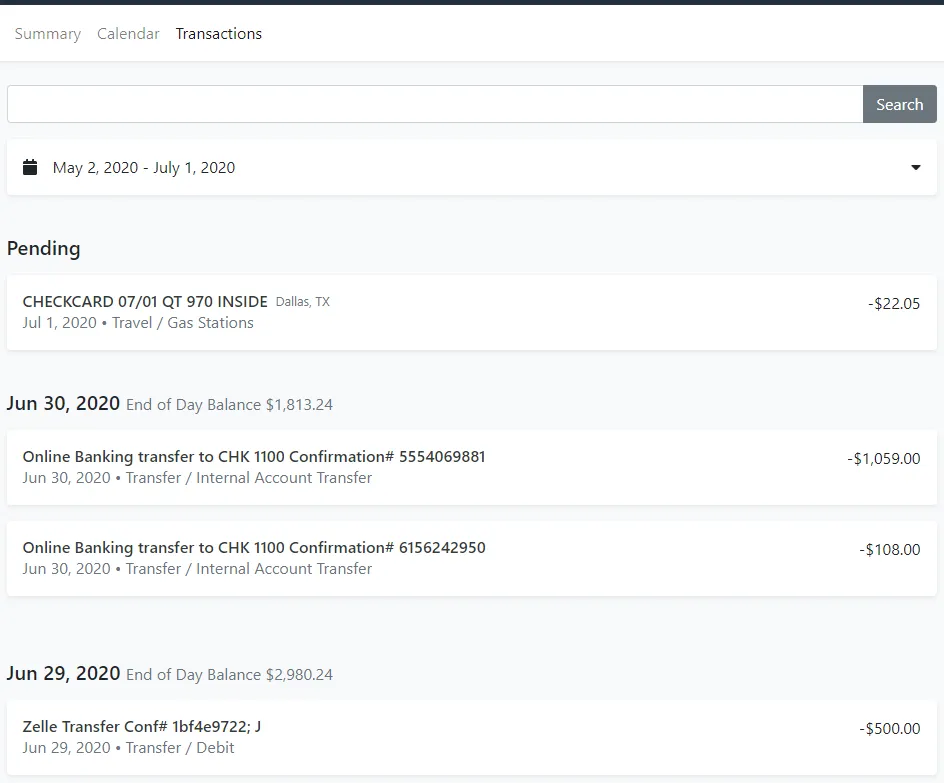
From here you can view the transaction level bank information for this specific account. You can use the search bar at the top of the page to search for specific transaction occurrence. The date range of the transactions listed can also be updated in the drop down menu directly below the search bar.
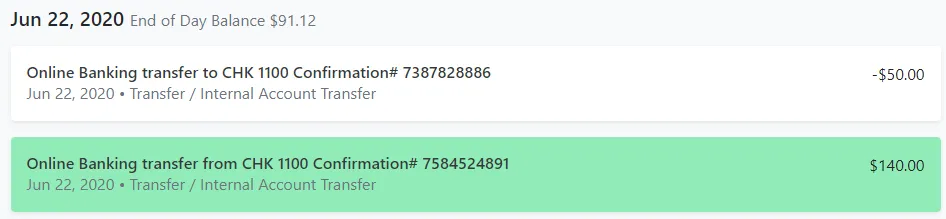
The view reads similar to an online bank statement with transactions grouped first by any pending items, then by day of the transaction. Next to each date, the end of day balance is provided.
Deposits are highlighted in green.