Applicant Overview
When you click on an applicant’s name in Approve Owl, you’ll be taken to their Approve Owl profile. Your first view will be their profile Overview, with a new sub-menu to navigate within that applicant’s profile.
1. Applicant profile navigation:
Section titled “1. Applicant profile navigation:” Applicant name: The largest text in the top profile bar is the applicant’s name.
Profile percent complete: Colored box noting the % of the applicant’s profile that has been completed.
10-digit number: This is the applicant’s social security number (SSN) as they entered it to Approve Owl.
Application date: This is the date that the application was initiated.
Set Reminder button: Set a reminder for yourself specific to this applicant. Choose the timing for when you want to be reminded and make a note to yourself. Hit Set Reminder button once you’ve completed filling out all fields.
Set Appointment button: Set an appointment note to yourself for this specific applicant. Choose the date/time of the appointment, make a note for context of the appointment, and click the Set Appointment button to save.
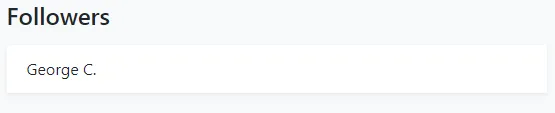
Follow/Unfollow button: Click this button to follow an applicant in the Approve Owl system. This is a way for sales team members to claim applicants as their leads. An applicant can be followed by more than one user.
Send/Resend Invite button: If the applicant is needing the Approve Owl invite resent to them, you simply navigate to their applicant profile and click this button.
Left hand navigation, from top to bottom:
Section titled “Left hand navigation, from top to bottom:”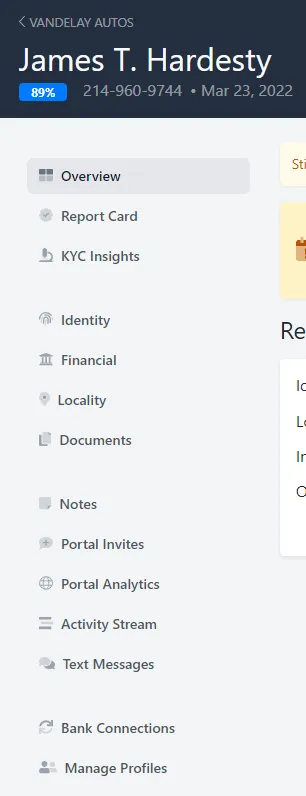 Overview: Applicant’s profile overview view. This is your starting place for every applicant, showing the tasks that applicant has completed in the Approve Owl process.
Report Card: Indicates the likelihood an applicant would be prequalified based on historical applicant data in Approve Owl.
KYC Insights: Know Your Customer Insights view specifically for the identity risk assessment. This assessment rating is also present in the Identity view for each applicant.
Identity: Provides a more detailed view focused on the applicant’s identity and available verifications.
Financial: Provides a more detailed view focused on the applicant’s financial information, including any linked bank accounts.
Locality: Provides a detailed view regarding locations where the applicant has spent money during the timeframe of data provided. Data is visualized in a heat map, as well as a sorted list.
Documents: Includes a listing of all supporting documents the applicant has uploaded in to the Approve Owl profile, such as their drivers license or proof of income/pay stubs. The full applicant profile packet can be downloaded on this tab, as well.
**Notes:**Applicant-specific notes entered by users.
Portal Invites: Shows a history of the applicant being invited to create a profile in the platform.
Portal Analytics: Provides analytics specific to the applicant profile you’re within.
**Activity Stream:**Date/time log of the applicant’s task completions, invitations, logins, and asset report actions.
Text Messages: Communication thread of texts sent from users to/from the applicant.
Bank Connections: Listing of all bank links provided by the applicant, asset reports pulled and any bank linking events. Bank link events can be helpful to diagnose if there was an issue with connecting to the bank linked.
Manage Profiles: If the applicant has gone through the Approve Owl process more than once, their aggregated profile listing will be contained here.
2. Report Card module:
Section titled “2. Report Card module:”Provides a snapshot of the applicant’s likelihood to be prequalified based on 4 categories.
3. Notes module:
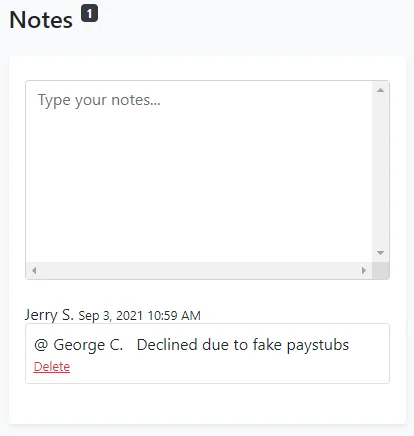
Section titled “3. Notes module:”This module provides an area to make notes within each applicant’s profile. You can tag other users in your notes by typing ”@” and then their name. Each note is day/time stamped and notes the user that entered the note to the applicant profile.
4. Identity module:
Section titled “4. Identity module:”This module provides a snapshot regarding the identity information the applicant has provided. Overall, the date the information was provided, if they were referred by a specific team member, how many times they’ve visited this section of their profile, what supporting document type was provided, and a count of how many supporting documents were loaded to Approve Owl.
5. Tasks module:
Section titled “5. Tasks module:”This module is a quick overview of the primary applicant profile tasks and whether the applicant has completed each.
Task completion is represented by a green check circle. If a task is not complete, the percent complete will be noted.
6. Finances module:
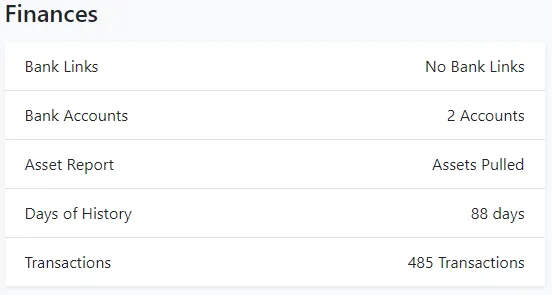
Section titled “6. Finances module:”This module provides a snapshot of the financial information the applicant has loaded to their Approve Owl profile.
Overall, whether there is an active link to their bank account(s), how many bank accounts were linked, asset report status (whether the bank data was pulled in or not from the link), days of banking history available from the link, and the number of transactions available from the link.
7. Followers module:
Section titled “7. Followers module:”This module lists out all team members in your Approve Owl platform that are following this applicant’s profile.