Applicant Finances
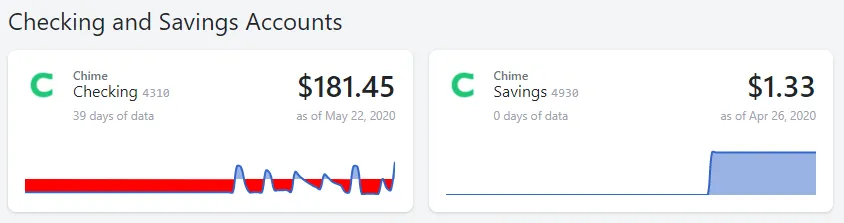
1. Checking and Savings Accounts listing:
Section titled “1. Checking and Savings Accounts listing:”Listing of all bank accounts linked within Approve Owl by the applicant. You can click in to each account by clicking on the box for that account to view additional detail. Each bank account listed notes the banking institution, account type, the last 4 of the account number, current and available balance, and provides a visual line graph representing the account balance with the applicant being in the positive (blue) and negative (red) over the duration of data available.
These detailed sections behind each linked bank account will be covered in an additional Finances Details walk-through section.
2. Employment section:
Section titled “2. Employment section:”Lists the applicant provided employment information, both current and previous.
3. Analysis section:
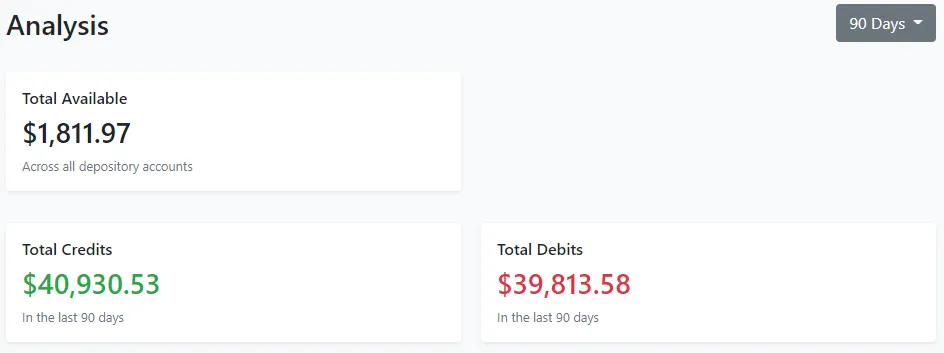
Section titled “3. Analysis section:”Provides a high-level view of the total available funds across all linked back accounts, as well as the total credits and total debits.
To the top right of the Analysis section, you can choose from the drop down the time frame you’d like the analysis to represent. Depending on the duration of data available from the particular banking institution, you could choose a 90, 60 or 30 days analysis view.
4. Income section:
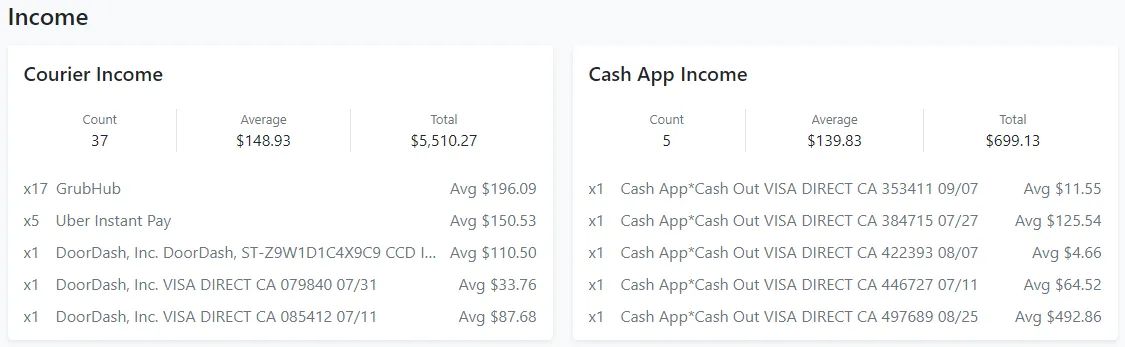
Section titled “4. Income section:”The Income section is an overview of standout trends in the applicant’s income. Primary items called out are the frequency of courier income (uber, door dash, etc.) and cash app income.
5. Expenses section:
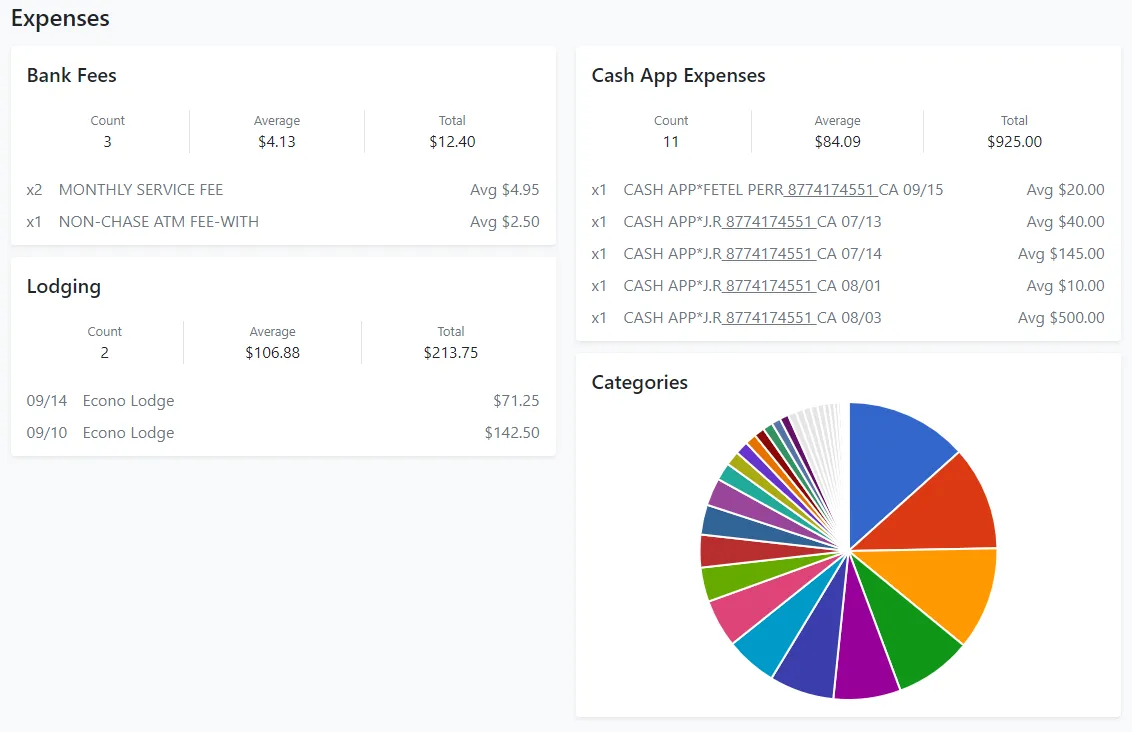
Section titled “5. Expenses section:”Calls out any stand out expenses present in the applicant’s finances. Key items highlighted are the frequency of bank fees, cash app expenses, and lodging (hotels/motels).
The Categories chart is interactive. If you hover over each color on the chart, the chart will show that color section’s expense description and amount spent in that category.